TEXT NOTIFICATIONS
Stay up to date with text notifications
Fleet Manager 24/7 sends your schedule to your account email by default. If you'd also like schedule updates by text, you can turn on Text Notifications during account activation or anytime from Account Settings.
How it works
- 1
Turn on Text Notifications
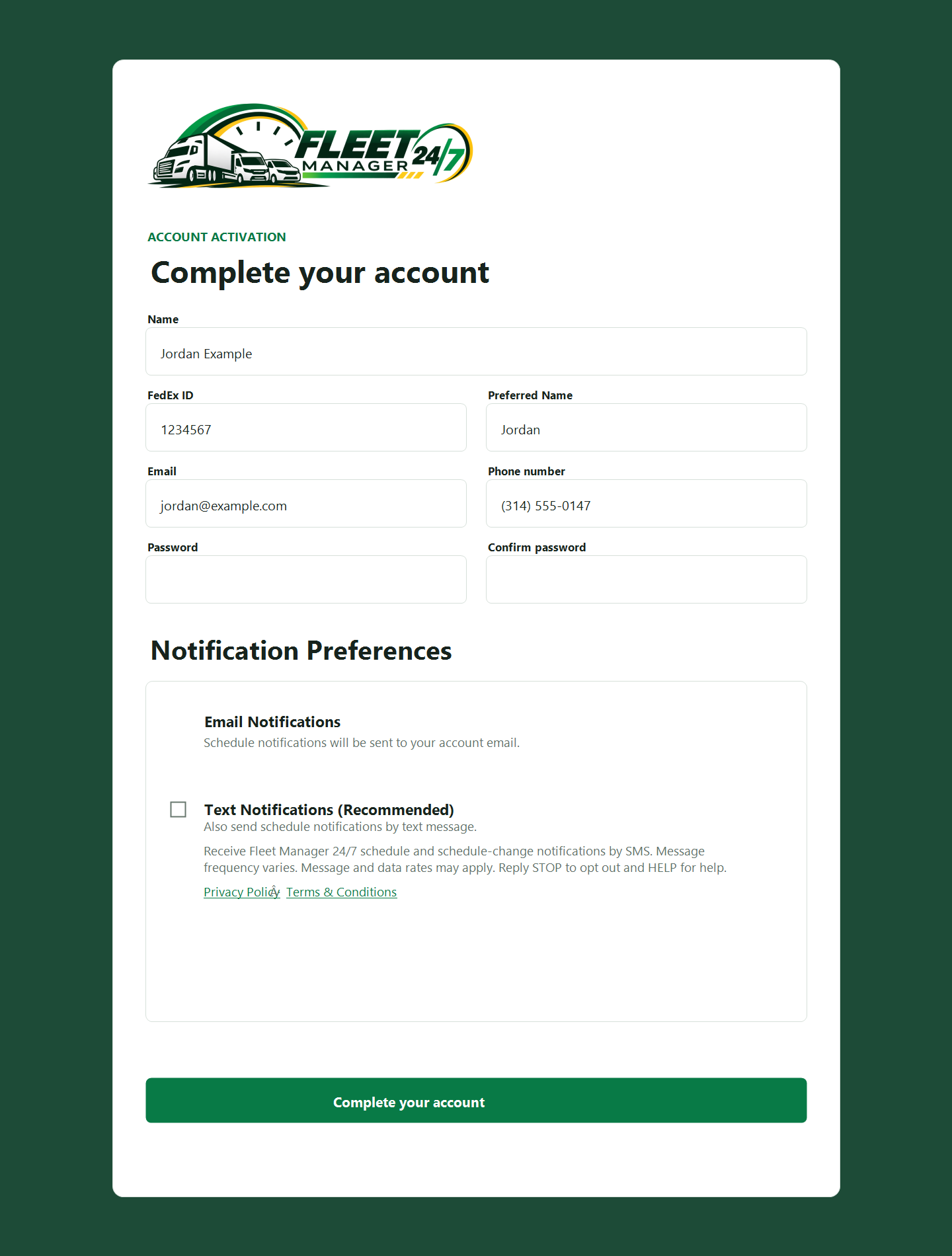
During account activation, check “Text Notifications (Recommended).” The option is always off until you choose to enable it.
- 2
Get schedule updates
Once enabled, Fleet Manager 24/7 can send schedule and schedule-change notifications to the phone number on your account.
- 3
Change your mind anytime
You can turn Text Notifications off from Account Settings or reply STOP to a Fleet Manager 24/7 text. Your regular email schedule notifications will continue.
Text message details
Receive Fleet Manager 24/7 schedule and schedule-change notifications by SMS. Message frequency varies. Message and data rates may apply. Reply STOP to opt out and HELP for help.
For help with Fleet Manager 24/7 messaging, reply HELP or contact [email protected].
Want to see the sign-up screen?
View an example of the Text Notifications option shown during account activation.
 View full-size example